Sample Generation
|
Generating a WPF/WinForms/Web/Console Sample specific to your business model
CodeTrigger uses objects from your modelled business domain to generate your sample, in order to ensure that the sample is as useful and specific to
your requirements as is possible. If you have selected the option to generate a sample, then you are presented with the list of Business Objects in your modelled domain from which you
can choose the Business Object to be used in the generated sample.
|
In order to use the sample functionality, you will need to create one or more projects of the type(s) of samples you are interested in. For example if you want to see a Console sample
and a WPF sample, you create a Console Project and a WPF project in your solution and declare the file paths of those projects in the settings for your code generation session.
|

|

|
|
Refer to the Samples & Tutorials pages for step-by-step instructions for building WPF, Web forms, Win Forms, and Console sample applications.
|
In a sample multi-tier application consisting of a data layer, a business layer, and a WPF front end GUI application, you will need to define locations for your data layer files and your business layer files.
(These can be separate projects in which case you will need to add the appropriate references to each project).
Then you will need to create a new WPF application project (and add a reference to your business layer if required). Define these locations in your CodeTrigger settings.
Once that is done, select the Business Object you are interested in (and make sure to tick it as the 'sample' object) and click 'Shoot'!
All the required data layer and business layer files will be generated in the appropriate directories.
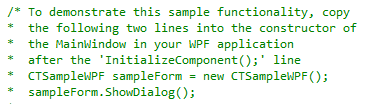
All you have to do then is make sure all the generated class files are 'included' in the relevant projects (you might have to refresh the project to see the new files), run the generated SQL script against your chosen database, and copy and paste the one or two required lines from your generated WPF sample form into the relevant section of your WPF application.
See the tutorial section for step-by-step guides.
|